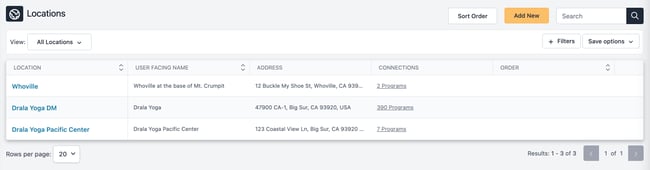
We are formalizing the concept of location.
Centers that deliver programs in multiple locations will benefit most from the initial release. However, even centers within a single location will notice some changes.
Rollout of the new Locations feature will begin in June 2026.
What’s changed?
Previously, on the Edit Program page Information tab in the Program Information section, Location and Address were configured as simple text fields. These fields appeared on the program description page sidebar.
With the new Locations feature, a new Location dropdown field appears on the Edit Program page in the Program Type, Dates, and Location section.
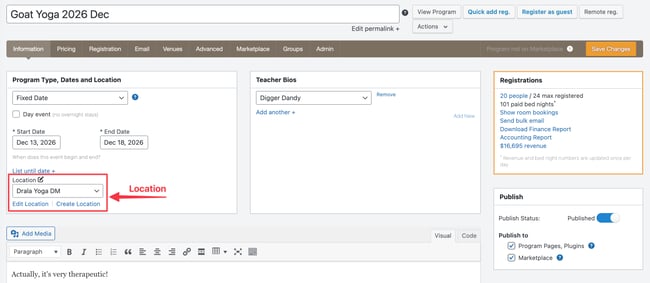
Select the program's location from the Locations list using the dropdown. Learn more about the Locations list in the Feature highlights section below.
The Program Information section now includes two checkboxes: Show location/display name and Show address.
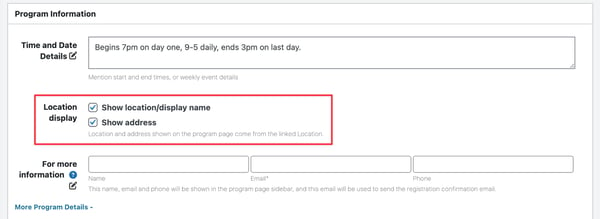
If both boxes are checked, the Location (display name) and Address will appear in the program description page sidebar.
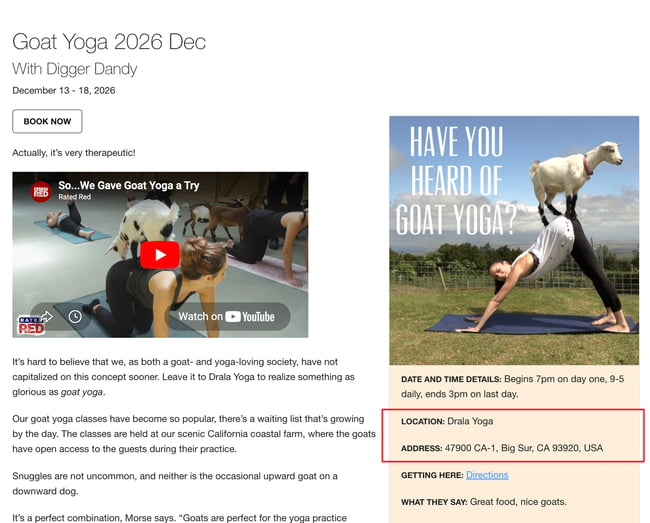
If you prefer not to display the Location or Address fields in the program description page sidebar, leave the boxes unchecked.
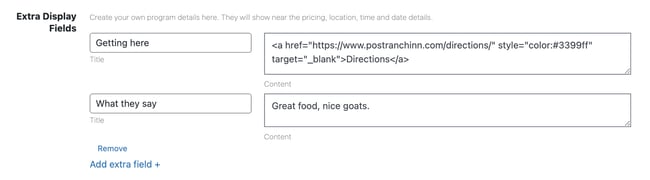
In the Extra Display Fields section, you can create custom fields for display on the program description page sidebar.
Feature highlights
The Locations list is accessed under Configuration on the main navigation menu.
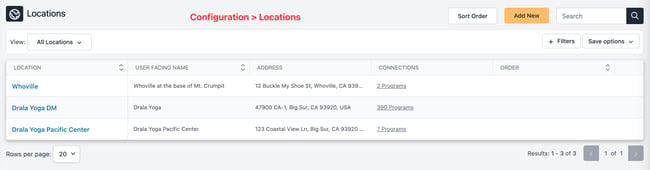
Select a location name to view or edit that location’s information.
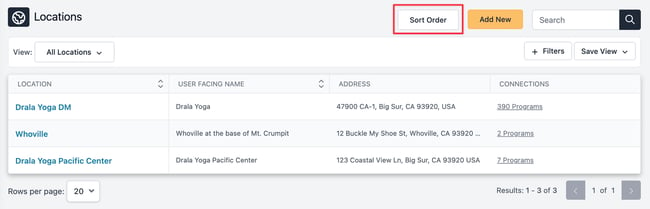
Select Sort Order and use the burger icon to drag and drop Locations in the list to determine their order in the dropdown selector. For example, the Location dropdown is used to associate a program with a Location.
The first Location in the list will be the default location used when a new program is created.
Details tab
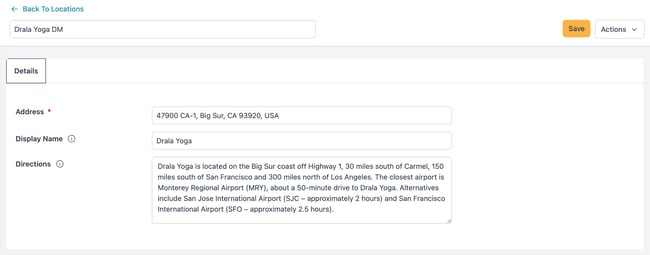
On the View/Edit location page, the Details tab shows three fields: Address, Display Name, and Directions.
The use of HTML code in the Address and Display Name fields is not supported. However, you may use HTML to include hyperlinks or to apply basic styling in the Directions field.
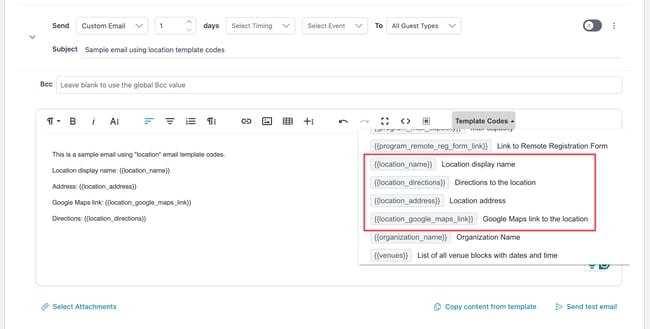
Template codes for Display Name, Address, and Directions are available and can be used in emails and the Banquet Event Order (BEO).
A template code is also available for a Google Maps link automatically generated using the geo-coded Address field.
Marketplace tab
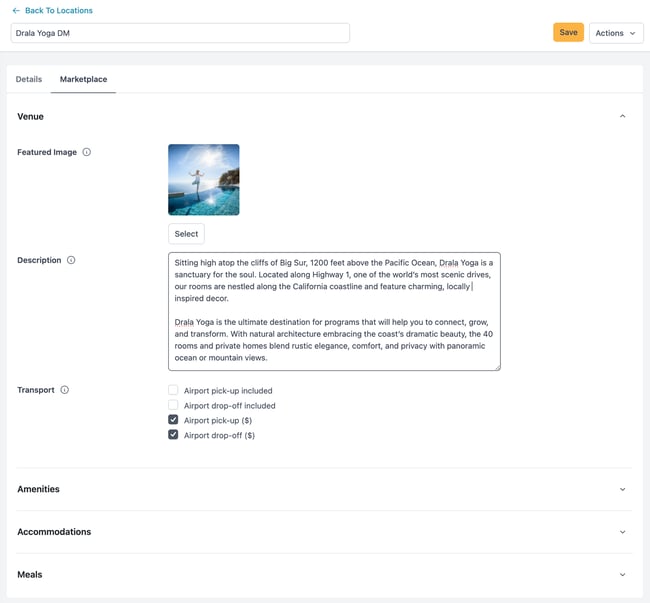
If the marketplace feature is enabled, the View/Edit Location page includes a second tab, Marketplace, that includes location-specific marketplace fields.
What does this mean for me?
Locations will be auto-enabled for your center.
Rollout of the new Locations feature will begin in June 2026.
One location and no marketplace - single Details tab
If your center has a single physical location and you do not participate in the marketplace, you will see a single Details tab under Configuration > Locations > View/Edit location.
One location and marketplace - Details and Display tabs
If your center has a single physical location and you participate in the marketplace, you will see two tabs under Configuration > Locations > View/Edit location: Details and Display. The Display tab is where location-specific information is managed.
Marketplace profile
If you participate in the marketplace, you can view/edit your general marketplace profile page under Configurations > Marketplace Profile. This profile includes your center name, email address, cancellation policy, general photo gallery, mission, brand video, phone, and primary location.
Edit program page
A new Location dropdown field now appears on the Edit Program page in the Program Type, Dates, and Location section.
The Program Information section now includes two checkboxes: Show location/display name and Show address.
Template codes
Template codes for Display Name, Address, and Directions are available and can be used in emails and the Banquet Event Order (BEO). A template code is also available for a Google Maps link automatically generated using the geo-coded Address field.
Migration
When the new Locations feature is enabled, Retreat Guru will create at least one Location for your center.
This auto-created Location will use your center’s name as the Display Name. The new Address field will be populated with either the address from your marketplace profile or, if that doesn’t exist, the address from your billing contact in Retreat Guru. If neither exists, the new Address will be blank.
Additional locations will be automatically created for each unique combination of Location and Address previously entered on the Edit Program > Information tab.
Notes about the process for auto-creating Locations:
- Previous Location and Address: If your center used both the previous Location and Address fields, a new Location will be created. The old Location becomes the Display Name, and the old Address becomes the new Address.
- Previous Address only: If your center used only the previous Address field, a new Location will be created using that Address.
- Previous Location only: If your center used only the previous Location field, a legacy Location will be created. If desired, you can activate this legacy Location to make it available to other programs.
- No previous data: If your center didn’t use the previous Location and Address fields, no Locations will be created.
- Past Locations: If an old location hasn’t been used by any programs in the past 12 months, it will become a legacy Location. If desired, you can activate this legacy Location to make it available to other programs.
- Unique combinations only - only unique Locations will be auto-created from previous data. For example, if multiple programs had identical data in their old Location and Address fields, only one new Location will be created.
- Most recent marketplace data - when analyzing Location and Address from marketplace listings, the most recent entries will be used to create the new Location information. If the existing entry has a value and the newer entry is blank, the existing entry will remain.
- Standardization: When analyzing existing Location and Address fields, HTML code is removed, and the data is normalized before comparison. This process ignores common connector words (such as “the” and “of”), leading or trailing spaces, and similar non-essential formatting differences.
- Online: If your center used some variation of “Online” as the old Location and did not include an Address, a legacy Location will be created.
Manually merging Locations
When the new Locations feature is enabled, you may notice multiple new Locations for the same space; you deem them duplicates.
To manually “merge” two Locations:
1. From the Locations list, select the Location you no longer wish to use.
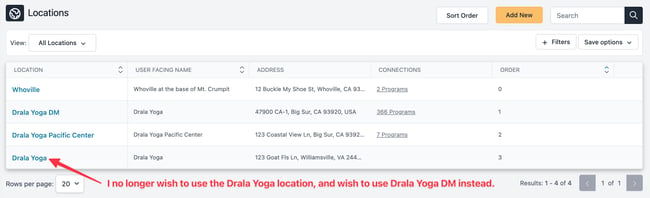
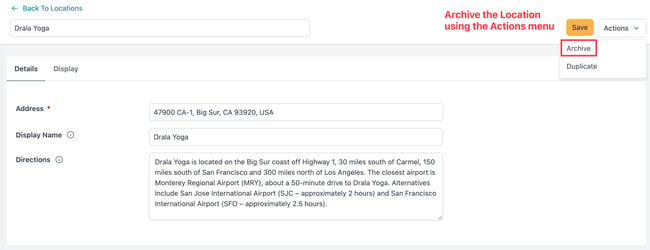
2. On the Edit Location page, choose Archive from the Actions menu.
3. From the Locations list, select the Location that you just archived. If needed, you can filter the Locations list to show only Archived locations.
a. Select Delete from the Actions menu.
b. Use the Reassign to dropdown to choose an alternative Location.
c. Select Reassign and Delete.
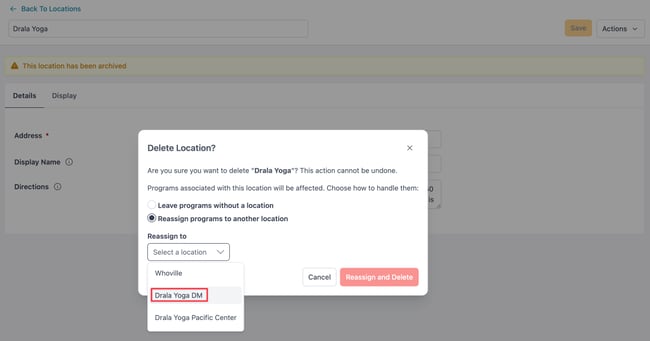
4. All programs using the previous Location have now been reassigned to the new Location.